
Bleed, trim and safe area describe different parts of a print layout. Understanding bleed, trim safe area for print helps a designer keep edge-to-edge backgrounds while protecting text and important details.
Think in three boundaries
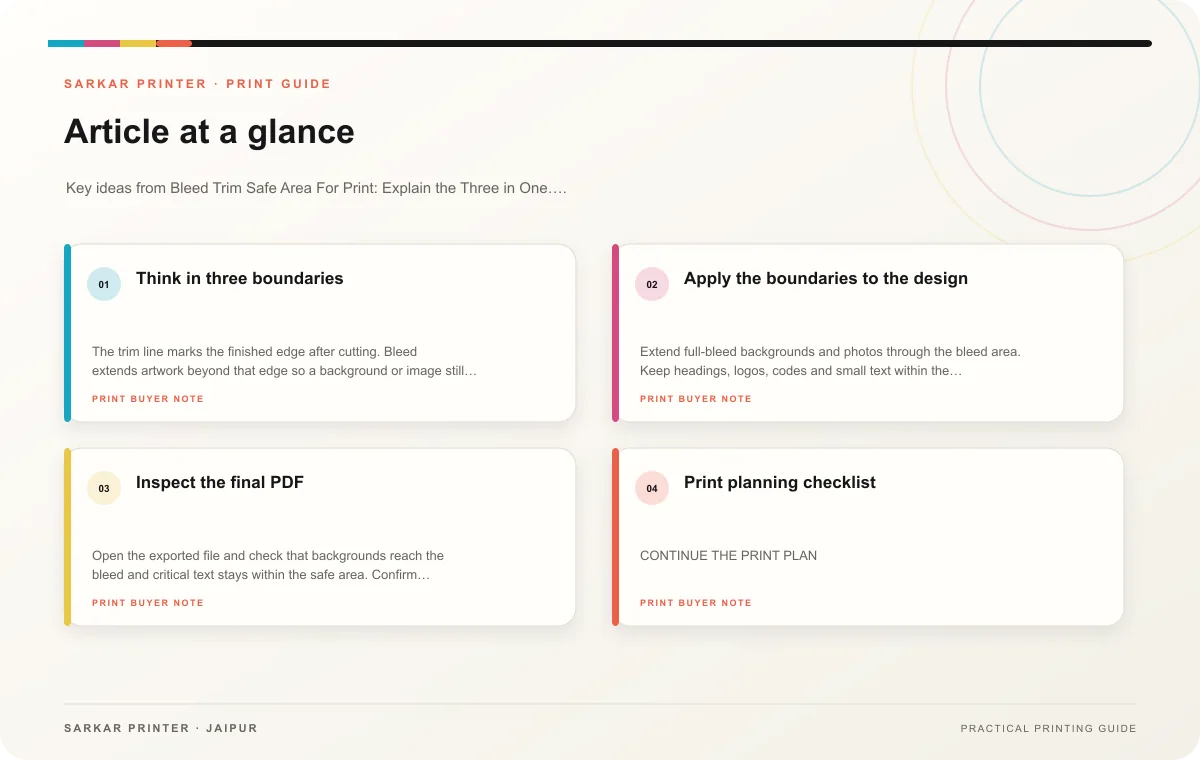
The trim line marks the finished edge after cutting. Bleed extends artwork beyond that edge so a background or image still reaches the edge if the cut shifts slightly. The safe area keeps important content inside the finished edge, away from trimming. The printer’s template should show the exact dimensions and margins for the job.
These boundaries are not interchangeable. A logo placed in the bleed can be cut off; a background ending exactly at trim can leave a white sliver if the cut shifts. A phone number too close to trim can feel cramped or be lost. Use the specified template and confirm measurements with the print team instead of relying on a generic setup.
Apply the boundaries to the design
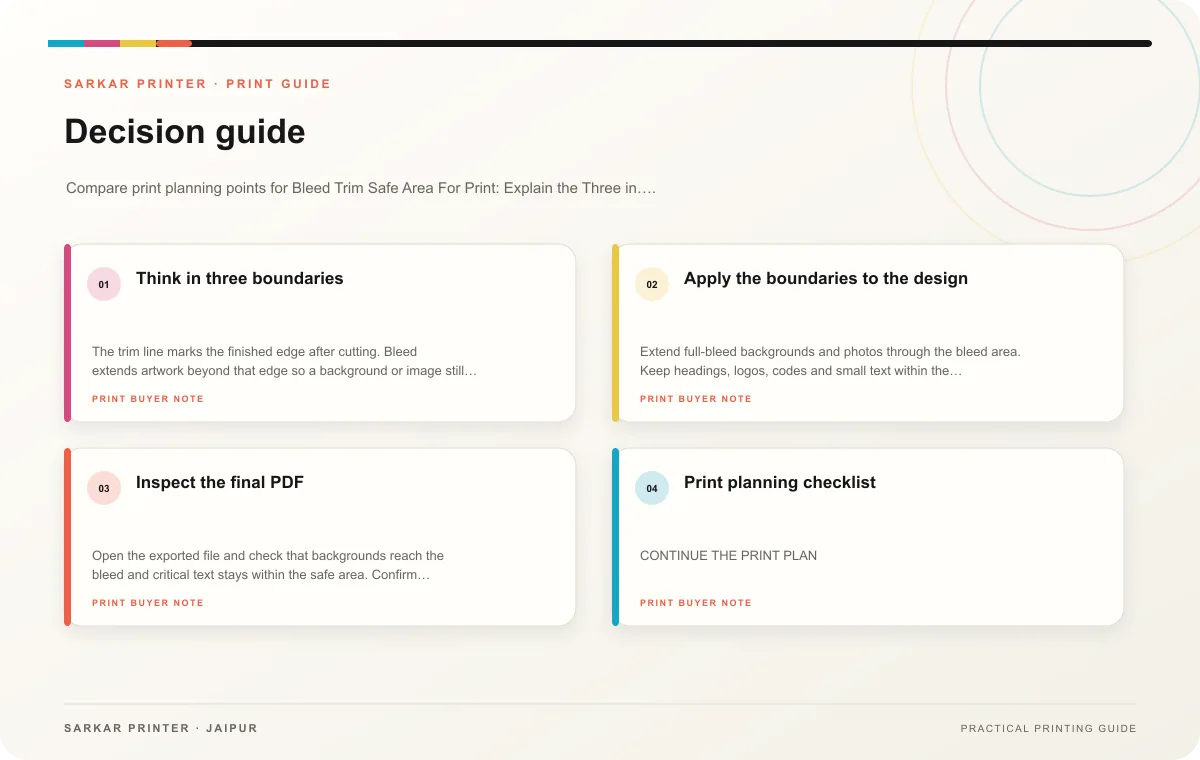
Extend full-bleed backgrounds and photos through the bleed area. Keep headings, logos, codes and small text within the safe area. For folded pieces, follow the printer’s panel measurements and keep important content clear of creases. A visual guide layer can help during design, but remove non-printing guides from the final export.
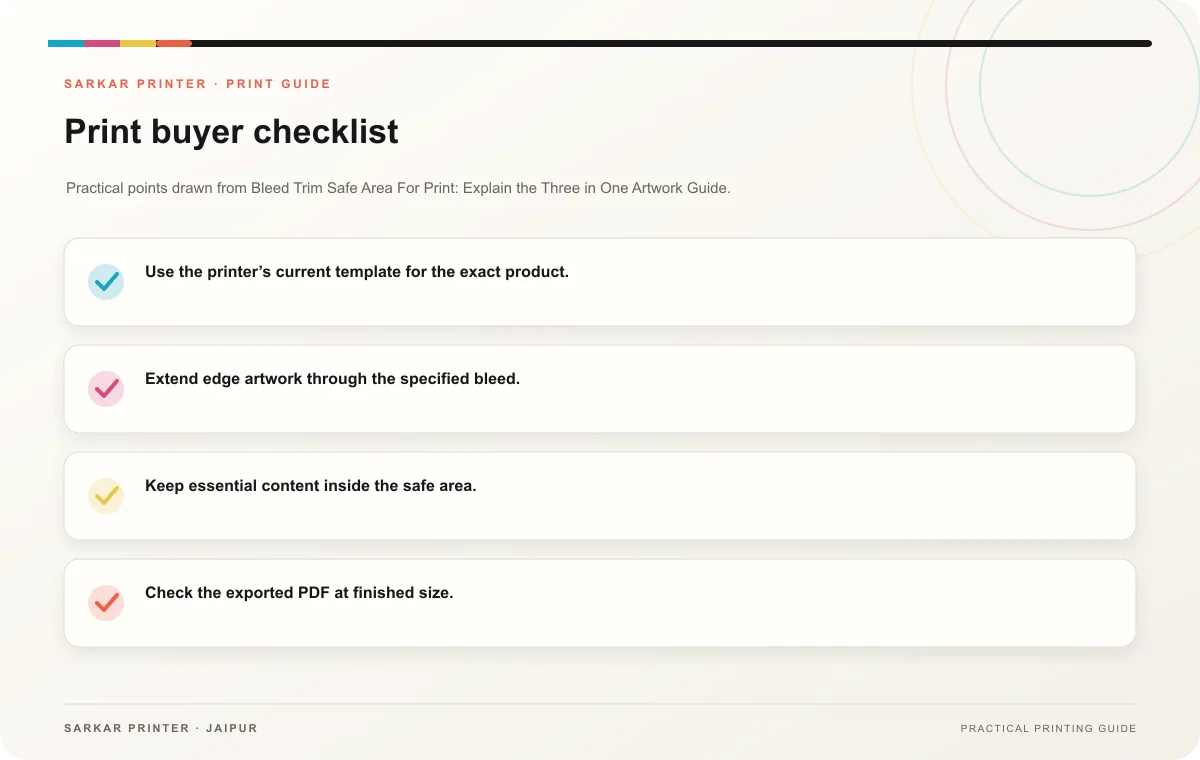
- Use the printer’s current template for the exact product.
- Extend edge artwork through the specified bleed.
- Keep essential content inside the safe area.
- Check the exported PDF at finished size.
- Ask the printer to review the setup if the template is unclear.
Inspect the final PDF
Open the exported file and check that backgrounds reach the bleed and critical text stays within the safe area. Confirm the page size and orientation match the specification. If the piece folds or uses a die line, review a mock-up to understand where the final edges and panels land.
Print planning checklist
| Topic | Key point | Check before approval |
|---|---|---|
| Think in three boundaries | The trim line marks the finished edge after cutting. Bleed extends artwork beyond that edge so a background or image still reaches the edge if the cut shifts slightly. The safe area… | Record the agreed choice in the approved print brief. |
| Apply the boundaries to the design | Extend full-bleed backgrounds and photos through the bleed area. Keep headings, logos, codes and small text within the safe area. For folded pieces, follow the printer’s panel… | Record the audience and main message in the print brief. |
| Inspect the final PDF | Open the exported file and check that backgrounds reach the bleed and critical text stays within the safe area. Confirm the page size and orientation match the specification. If the… | Record the agreed choice in the approved print brief. |
CONTINUE THE PRINT PLAN
Keep the next step useful.
Explore the service page or related drafts, then send the agreed brief to the print team.
Frequently asked questions
Does every job need bleed?
Jobs with artwork intended to reach the edge generally need a bleed setup. Follow the printer’s requirement for the specific product.
How much bleed should I add?
Use the value supplied by the printer or template; requirements vary by product and production method.
What stays in the safe area?
Keep text and important visual details comfortably inside the final trim, following the supplied guide.